


• History. Delivered.

    History. Delivered.

    The weapons used. The uniforms worn. The letters written. The sacrifices made. Each piece of memorabilia in the Michigan Traveling Military Museum holds a story of the individual who used it. History at your fingertips. And we bring it all to you.
  • History. Delivered.

    History. Delivered.

    The weapons used. The uniforms worn. The letters written. The sacrifices made. Each piece of memorabilia in the Michigan Traveling Military Museum holds a story of the individual who used it. History at your fingertips. And we bring it all to you.
  • History. Delivered.

    History. Delivered.

    The weapons used. The uniforms worn. The letters written. The sacrifices made. Each piece of memorabilia in the Michigan Traveling Military Museum holds a story of the individual who used it. History at your fingertips. And we bring it all to you.
  • History. Delivered.

    History. Delivered.

    The weapons used. The uniforms worn. The letters written. The sacrifices made. Each piece of memorabilia in the Michigan Traveling Military Museum holds a story of the individual who used it. History at your fingertips. And we bring it all to you.
  • History. Delivered.

    History. Delivered.

    The weapons used. The uniforms worn. The letters written. The sacrifices made. Each piece of memorabilia in the Michigan Traveling Military Museum holds a story of the individual who used it. History at your fingertips. And we bring it all to you.
  • 1
  • 2
  • 3
  • 4
  • 5

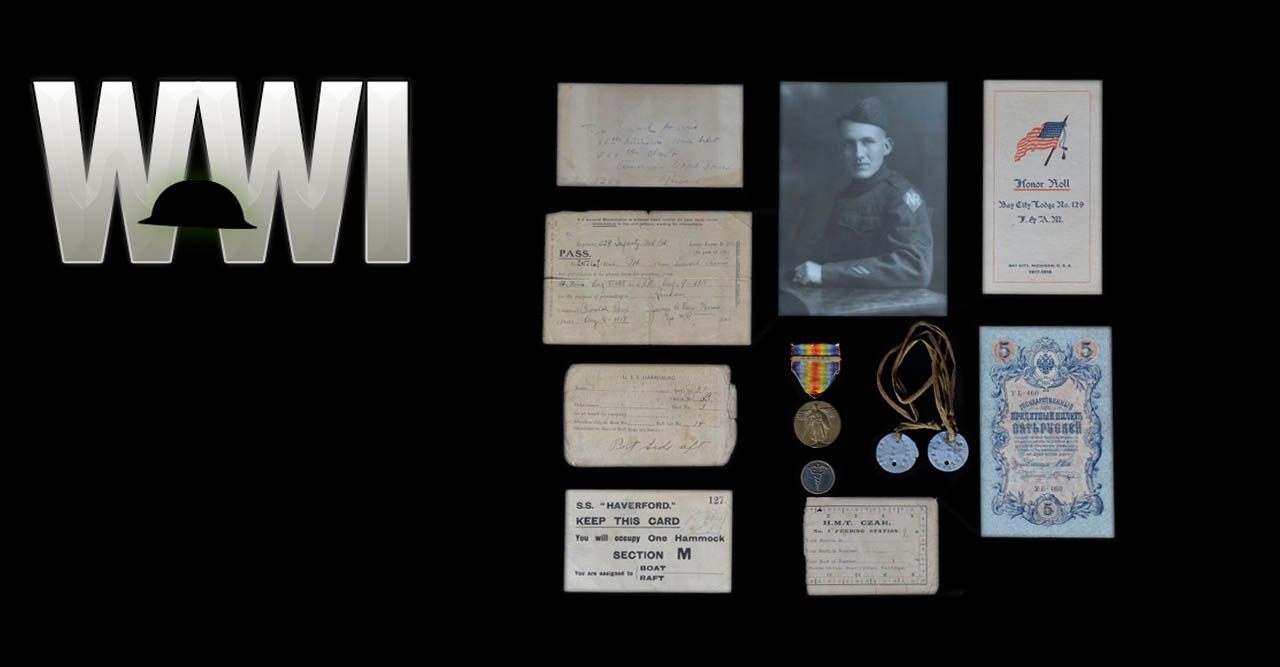
WWI

Browse our bits of history from The Great War.

Read More


WWII

See our relics from the deadliest conflict in history.

Read More


German Military

Learn more about our German military pieces.

Read More


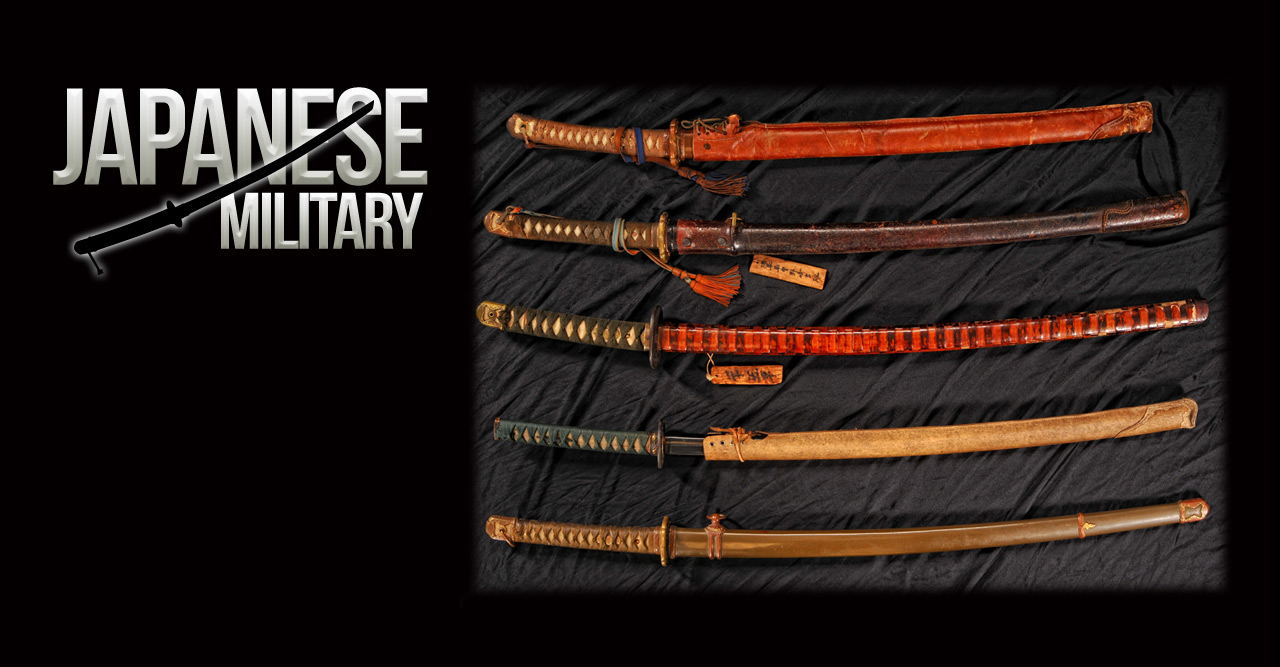
Japanese Military

Have a look at our Japanese military memorabilia.

Read More


The following is a step by step guide to customising your Diametric logo image by replacing the logo text with your own organization or company's name and logo.

Adobe® Fireworks

The 30-day free trial of this software as well as more information is available here at the Adobe website.

Step 1: Open the File
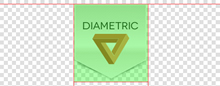
Logo
  • Open the logo-source.png file in Adobe® Fireworks.
  • In the right column, find Layers. Select the Web layers directory and click the eye icon to the left of the logo slice (the green object). This will make the slice invisible so you can edit the file.

Step 2: Text/Slogan/Icon Editing

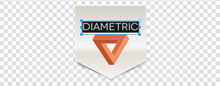
  • Double click on the logo text. Now you can edit the text of logo to your choosing. Edit the icon as desired.

Logo Logo

Logo Logo

Logo

Step 3: Slice Modification

  • Reactivate the Slice in the Web Layers column, this will place a green rectangle over the logo image. Change the size of the slice (or move it) to match the new size if applicable.
Logo

Step 4: Export

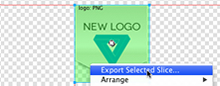
  • Now you will want to export the logo. Right click on the image slice and select Exported Selected Slices... from the contextual menu. Export it to your computer.
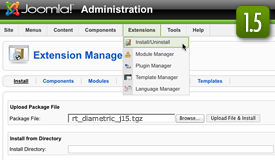
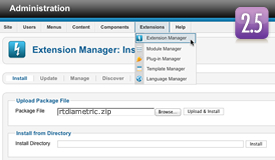
The following is a guide that covers how to set up your new Diametric template on your Joomla! site. Here you can find an overview of the files included in the Diametric release and instructions on installing and activating the template in your Joomla! install.

Note: The Bundle Template is only necessary if the Gantry Library is not installed at /components/com_gantry (J1.5) or /libraries/gantry (J2.5).


Step 1 - Installation

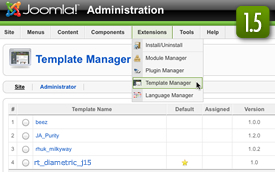
  • (J1.5) Install from Admin → Extensions → Install/Uninstall → Choose File → Select file → Upload File & Install
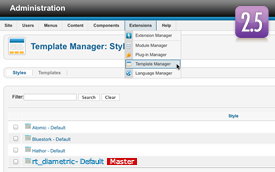
  • (J2.5) Install from Admin → Extensions → Extensions Manager → Choose File → Select file → Upload File & Install

Image Image

Step 1 - Template Default

  • (J1.5) Make the template default at Admin → Extensions → Template Manager → rt_diametric_j15 → Default
  • (J2.5) Make the template default at Admin → Extensions → Template Manager → rt_diametric → Make Default

Image Image

RocketLauncher Instructions

We always recommend installing a RocketLauncher first to trial and understand the template more efficiently. It must be installed as new, and not over an existing Joomla install.

Step 1 - Upload

  • Download the RocketLauncher
  • Unzip
  • Upload the created folder to your server

Note: You can upload all the files via FTP, or use cPanel or SSH to upload the zip and unzip directly onto the server. Enquire with your hosting provider.


Step 2 - Installation

  • Go to www.yoursite.com/*folder name*
  • Follow the Installation instructions
  • Ensure you click Install Sample Data during installation
  • (J1.5) Delete the /installation directory on your server
  • (J2.5) Remove the installation folder in the Installation interface